Drawing Pad Pro - Sketchpad
DOSA AppsArt & Design
4.5523.00 Reviews
- Version
- 4.3.4
- Installs
- 1.00M
- Age Rating
- Everyone
Screenshots
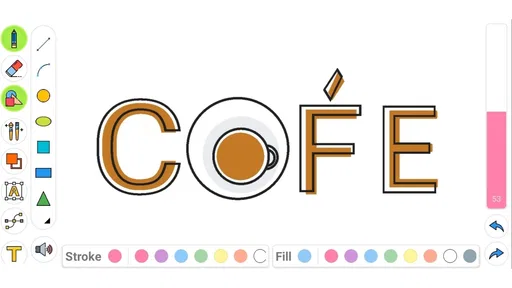
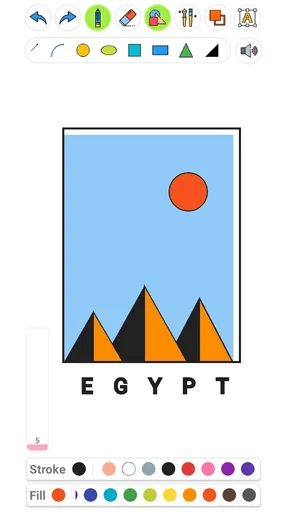
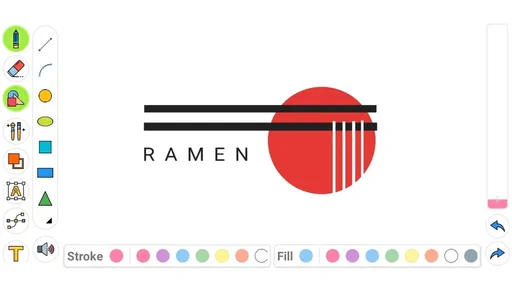
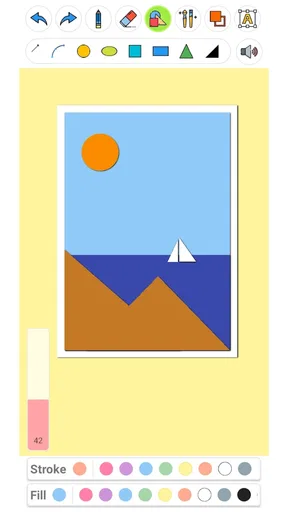
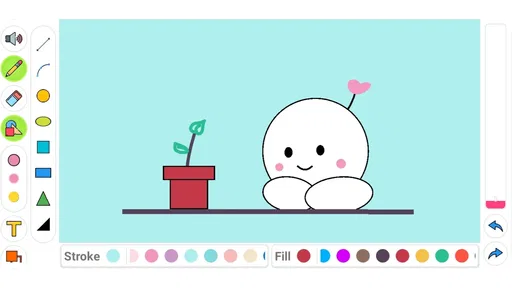
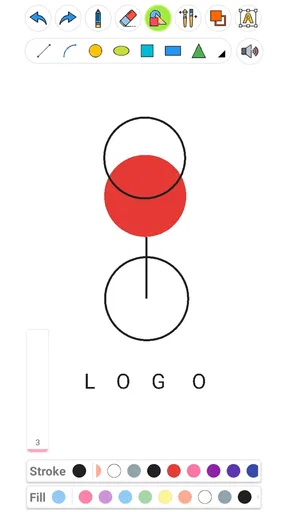
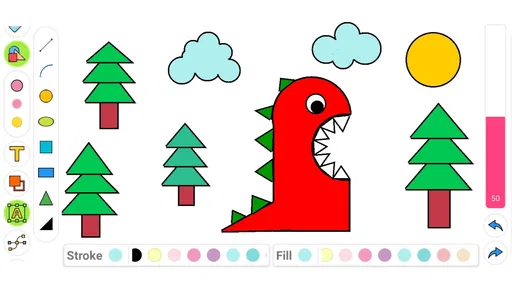
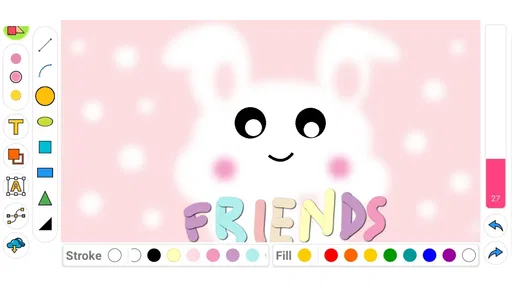
Our Review of Drawing Pad Pro - Sketchpad
 Analysis by Appyee
Drawing Pad Pro - Sketchpad is the kind of drawing app I would suggest when someone wants to start making pictures immediately rather than study a complicated creative suite. It is made by DOSA Apps and sits in the Art & Design category, with a simple promise: open a blank space, choose a tool, and begin drawing. That straightforward approach makes it approachable for children, casual doodlers, students, and adults who want a quick visual outlet.
After spending time with it, my overall impression is that its greatest strength is the low barrier between an idea and the first mark on the screen. You do not need to understand professional illustration terminology before trying it. At the same time, the app is not a complete replacement for a serious desktop art program. The better question is whether you want a friendly digital sketchpad or a highly controlled production environment. For the former, it makes a convincing case.
What to expect from this digital sketchpad
The app is free to install and carries an Everyone content rating, so it is positioned for a broad audience rather than a specialist group. It supports devices running Android 5.0 or later, which makes it accessible on many older phones and tablets as well as newer hardware. The current version is 4.3.4, and its long presence since its release in April 2021 gives it the feel of an established tool rather than a brand-new experiment.
Its public reception also suggests that many people find the basic idea useful: it holds an average rating of 4.5 from around 20K ratings, and the app has passed 1M+ installs. I would not treat those figures as proof that every artist will love it, but they do indicate that the simple drawing-pad format has reached a substantial audience.
In practical terms, I would expect this app to work best for quick sketches, coloring-style activities, handwritten visual notes, simple illustrations, and relaxed practice. It is especially suitable when I want to draw without setting up a full workflow. A phone is always nearby, and a tablet gives the experience more breathing room, particularly when a child is drawing or when I want to work with larger shapes.
The important distinction is control. A professional graphics editor usually gives me a deep layer system, detailed brush behavior, precision selection, advanced export choices, and a long list of adjustment tools. A lightweight sketchpad normally trades some of that control for speed. Drawing Pad Pro - Sketchpad belongs closer to the second group. That is not a weakness by itself; it simply defines the kind of work it handles comfortably.
Who will get the most from it
I think first-time digital artists are the clearest audience. If you have ever opened a professional art app and immediately felt lost among panels, sliders, and unfamiliar icons, this kind of interface is less intimidating. Children can explore marks and colors without needing a lesson before they begin. Parents may also appreciate that the age rating is Everyone, although I would still guide younger users through any purchase-related screen.
It is also useful for people who think visually. I often remember an idea more clearly after making a rough shape than after writing a paragraph about it. A quick sketch of a room layout, a character pose, a logo concept, or a pattern can be enough to move an idea forward. The result does not need to be polished to be valuable.
I would be more cautious about recommending it to someone who needs exact technical drawing, print-ready professional production, or a carefully managed multi-stage illustration workflow. In those cases, a more advanced alternative may justify its steeper learning curve. This app is at its best when the goal is to create, practice, or communicate quickly.
Getting started without feeling lost
I find the first few minutes with a sketchpad go better when I focus on one small task instead of hunting through every control. In this section, I’ll cover a low-pressure way to learn the drawing area and build a first picture, then turn to the points that can make beginners pause.
The first setup matters more than it seems
When I begin with a new drawing tool, I try not to design a complete masterpiece on the first launch. I make the first session deliberately small: open the drawing area, choose a comfortable stroke, place a few marks, and test how the controls respond. That approach works particularly well here because it lets me learn the feel of the app before I become attached to a drawing.
If you are using a phone, rotate it or hold it in the position that gives your drawing hand the most room. A tablet is more comfortable for longer sessions, but a phone remains useful for spontaneous sketches. I also recommend starting with a simple subject that has clear shapes, such as a leaf, a cup, a cloud, or a cartoon face. Complicated subjects create too many decisions at once and can make a beginner blame the app for a problem that is really just an overly ambitious first exercise.
Before working on anything important, make a test drawing. Try a thin line, a broad line, a curve, a few overlapping colors, and an erase action if available in the working interface. This is a small but valuable habit because touchscreens do not all feel identical. The same gesture can feel precise on a tablet and cramped on a smaller phone.
My best first-session advice is to treat the opening drawing as a control check, not as a finished artwork. That removes pressure and gives you useful information about the canvas, the selected tool, and the way your finger or stylus behaves.
Your first meaningful success
A good first project is a simple sticker-style picture: a sun, a house, a plant, or a friendly face. Start by drawing the largest shapes, then add a few smaller details. This teaches an important digital-art habit: build the picture from broad forms instead of trying to perfect every tiny line from the beginning.
For example, I might draw a round face, add two eyes, place a simple mouth, and finish with a few colored details. The point is not artistic ambition. The point is reaching a complete result quickly. Once I can look at the image and recognize what I intended, I have learned more than I would from spending the same time searching through every option.
Another effective exercise is to redraw the same object twice. On the first attempt, I work quickly and accept uneven lines. On the second, I slow down and change the size or color choices. Comparing the two drawings helps me understand whether I prefer expressive marks or cleaner shapes. It also makes the app feel less like a test and more like a place to practice.
For a child, I would turn this into a short activity: choose one object, draw it using only a few colors, and then add an imaginative detail. A blue tree or a purple sun is not a mistake in this setting; it is a way to make the tool feel playful. For an adult, the same exercise can become a visual warm-up before a more serious sketch.
A realistic everyday use
Imagine that I am planning a small home project and need to remember how two shelves might fit on a wall. I do not need a full architectural program. I can make a rough rectangle for the wall, add shelf shapes, mark the approximate positions, and use color to separate the parts. The sketch may not be measured precisely, but it can help me explain the idea to someone else or notice that the arrangement feels crowded.
Another everyday case is capturing a visual idea during a commute or a break. A character silhouette, a repeating pattern, or a rough greeting-card concept can be recorded before it disappears. The value is speed. I am not opening the app because I expect a finished commercial illustration in a few minutes; I am using it to preserve the first useful version of an idea.
Where beginners may hesitate
Even a simple drawing app can feel uncertain when touch gestures and tool choices are unfamiliar, so I pay attention to how a small test behaves before committing to a longer sketch. I’ll look at common sources of hesitation and practical ways to work around them, especially when drawing on a compact phone screen.
Simple does not mean self-explanatory
The most common confusion with a drawing app is assuming that every visible control behaves exactly as expected. A pencil-like icon may create a different kind of mark from a brush-like icon, and a color choice may affect only the next stroke rather than existing marks. When something looks wrong, I first check whether I am editing the selected tool or the canvas itself.
I also avoid making detailed work until I understand how undo and erasing feel. Touch drawing is forgiving when I can correct a stray line quickly, but frustrating when I do not know which action will remove it. My practical routine is to test a deliberate mistake near the edge of a blank canvas, correct it, and then start the real picture. That takes seconds and prevents unnecessary anxiety.
Beginners sometimes expect a finger to behave like a pencil. It does not. Fingers are wider, less precise, and can cover the area being drawn. If the app responds well to a stylus on your device, that can improve control, but I would not assume that every stylus will offer the same experience. For casual work, I usually zoom my attention down to broad shapes rather than chase perfect hairline details.
Keeping a drawing manageable
A useful workflow is to separate decisions. First decide what the picture is about. Then decide on the main shapes. Only after that should you spend time on color and decoration. This prevents a common beginner problem: creating a colorful background before the central subject has a clear form.
I also recommend saving or finishing a meaningful stage before experimenting. If I have a recognizable sketch, I treat it as a checkpoint. Then I can try a different color or add details without feeling that one mistake has ruined the whole session. The exact best method depends on the controls available on the device, but the principle is universal: protect the version that already works.
Another non-obvious trade-off is screen size. A larger display gives more room for hand movement, but it can also tempt me to add unnecessary detail. A small screen encourages compact drawings and quick decisions. If I am choosing between phone and tablet use, I would pick the tablet for longer creative sessions and the phone for capturing ideas quickly.
When the free model becomes relevant
The app is free, which makes it easy to try without committing money at the start. It does include in-app purchases ranging from $0.99 to $99.99 per item. That wide range is worth keeping in mind before handing the app to a child or allowing purchases on a shared device. I would explore the free experience first and decide whether any optional purchase genuinely improves my workflow.
For someone who only wants occasional doodles, the free starting point may be enough. For a frequent user, it is sensible to pause before buying anything and ask what problem the purchase solves. Does it remove a limitation I actually encounter, or am I buying an option simply because it is visible? That question keeps a casual art tool from becoming an unnecessary expense.
I would also compare the cost with the kind of work I plan to do. If I need advanced professional controls every day, paying for a specialized art application may be better value than trying to stretch a lightweight sketchpad beyond its purpose. If I mainly want a convenient place for informal drawings, beginning free is a strong advantage.
How it compares with familiar alternatives
Compared with drawing on paper, this app is more forgiving when I want to correct a line or try a different color without wasting a page. Paper still feels better for some people, especially those who enjoy texture and physical materials. The app wins on convenience and experimentation, while paper wins on tactile feedback and simplicity outside a screen.
Compared with a basic phone notes app, a dedicated sketchpad gives the drawing activity more focus. Notes are excellent for combining words and quick marks, but they often make visual work feel like an attachment to text. Here, the drawing is the main activity, which helps when I want to think in shapes rather than sentences.
Compared with professional illustration software, the trade-off goes the other way. A more advanced program is preferable when I need precise editing, complex organization, or a production-ready workflow. Drawing Pad Pro - Sketchpad is preferable when those controls would slow me down or make the first step feel intimidating.
There is also a difference between a coloring-focused app and this kind of open sketchpad. Coloring apps can be relaxing because the boundaries and activity are already defined. An open canvas asks me to supply the idea myself. That freedom is rewarding, but a user who wants guided coloring pages may be happier with a specialized alternative.
My recommendation after using it
I see Drawing Pad Pro - Sketchpad as a welcoming entry point rather than an all-purpose art studio. Its appeal comes from making the first action easy: choose a drawing space, make a mark, and build from there. The app is a good fit for casual creativity, children’s activities, visual notes, practice sketches, and anyone who wants to draw without a long tutorial.
I would skip it if my main goal were technical precision, extensive professional editing, or a carefully structured illustration pipeline. In those situations, a more advanced tool is likely to save time in the long run, even if it takes longer to learn. I would also think carefully about the in-app purchase range before letting a child use it independently.
For a first-time user, my suggested path is simple: begin with a blank test drawing, learn one mark and one correction action, create a small recognizable picture, and only then explore more ambitious ideas. That sequence turns the app from an empty canvas into something reassuring and useful. After that first success, you will know whether its lighter approach suits you.
Overall, I recommend it to friends who want an approachable digital sketchpad rather than a demanding professional suite. DOSA Apps has kept the central experience easy to understand, and the broad audience, free entry point, and Everyone rating make it a practical first stop for casual drawing. Its limits become clearer as your expectations grow, but for quick, enjoyable creation, it does exactly what I want a beginner-friendly art app to do.
Verdict
Strengths of Drawing Pad Pro - Sketchpad
- Intuitive tools make it easy to start sketching immediately.
- Supports layered artwork for more organized and flexible editing.
- Wide range of brushes helps create varied drawing styles.
- Useful color controls allow precise shading and blending.
- Works well for quick doodles, notes, and more detailed illustrations.
Limitations of Drawing Pad Pro - Sketchpad
- Some advanced tools may require a paid upgrade.
- Large canvases can feel demanding on older devices.
- The interface may take time to master for new digital artists.
- Export options may be limited compared with professional art apps.
- Accidental touches can occur when drawing without a stylus.
Other Releases by DOSA Apps
View All
Cube Cipher - Cube Solver
Educational4.5

Recover Deleted Photos App
Photography4.4

Cleanup Your Phone
Personalization4.5

Microphone Amplifier
Medical4.2
Similar Picks in This Category
View All
Canva: AI Photo & Video Editor
Canva4.8

PENUP – Drawing-sharing SNS
Samsung Electronics Co., Ltd.4.5

Crafto
Kutumb App4.6

Sketchbook
Sketchbook4.1

ibis Paint X
ibis inc.4.5

Adobe Express: AI Photo, Video
Adobe4.6
Frequently Asked Questions
What is Drawing Pad Pro - Sketchpad, and what can I use it for?
Drawing Pad Pro - Sketchpad is a digital drawing and sketching app designed for creating illustrations, doodles, handwritten notes, coloring projects, and quick visual ideas. It provides a canvas-based workspace with drawing tools, color controls, and editing options that make it suitable for beginners as well as users who want a portable alternative to a traditional sketchbook. Its usefulness depends on the tools and features available in the version installed on your device.
Is Drawing Pad Pro - Sketchpad suitable for beginners?
Yes, the app is generally approachable for beginners because drawing can start immediately on a blank canvas without requiring advanced technical knowledge. Users can experiment with brushes, colors, erasing, and undo controls while learning the interface. However, people expecting professional desktop-level illustration features should review the available tools first, since the experience may be better suited to casual drawing, practice, notes, and simple creative projects.
Does Drawing Pad Pro - Sketchpad work offline?
Basic drawing functions may be available without a continuous internet connection, which is useful when you want to sketch while traveling or away from Wi-Fi. Nevertheless, some features can depend on the app version, device settings, advertisements, cloud services, or optional content. It is recommended to open the app once while online, check whether your preferred tools work offline, and save important artwork locally or export it regularly.
Can I save, export, or share drawings created in the app?
Drawing apps such as Drawing Pad Pro - Sketchpad typically allow users to save their work and share finished images through the device’s standard sharing options. Before starting an important project, check the available file formats, image quality, storage location, and whether exporting certain features requires an upgrade. Regularly saving your work is also advisable, particularly when creating detailed drawings or using the app on an older device.
Is Drawing Pad Pro - Sketchpad free to download, and are there in-app purchases?
The app’s download price and business model can vary between Android and iOS, as well as by region and store listing. Some versions may be free with advertising, while additional tools, content, or an ad-free experience could require in-app purchases or a subscription. Before installing, review the official store page carefully, including purchase terms, trial conditions, and permissions, to avoid unexpected charges.
